Setting Up Python for Sports Analytics: A Complete Beginner's Walkthrough
Part 1 of 10 in Python Foundations for Sports Data · course bundle (code + data)
What you'll build
A working Python setup that imports pandas and matplotlib and prints their versions.
Before we can group a single season of standings or draw a single shot chart, we need a working Python environment. This is the least glamorous tutorial on the site, and also the one that pays for itself the most: get it right once and every other tutorial here just runs. We'll install Python, pick a code editor, add the two libraries that show up in almost every example (pandas and matplotlib), and then prove the whole thing works by drawing a chart.
I'll be honest about timing up front. On a fresh machine this takes roughly 20 to 40 minutes, most of which is downloads waiting on your internet connection rather than anything you have to think about. You do not need to install every sports library now; each tutorial installs the one it needs at the top. We're just building the foundation.
-
Install Python itself
Go to python.org/downloads and grab the latest stable release for your operating system. The captured output on this page was produced with Python 3.13, and anything 3.10 or newer will be fine for everything on the site.
One detail matters more than any other on Windows: when the installer opens, tick the box that says Add Python to PATH before you click Install. That single checkbox is the difference between typing
pythonin a terminal and having it work, versus getting a confusing "command not found." On macOS the installer handles this for you; on Linux, Python is usually already present, though you may want a newer version.When it finishes, open a terminal (PowerShell on Windows, Terminal on macOS or Linux) and check that the interpreter answers:
bash python --versionIf you see a version number, Python is installed and on your PATH. If Windows opens the Microsoft Store instead, the PATH checkbox was missed during install — re-run the installer and choose "Modify" to add it.
-
Install a code editor
You can technically write Python in any text editor, but a real editor catches mistakes as you type and runs your code with one keystroke. I recommend Visual Studio Code (VS Code): it's free, it runs everywhere, and its Python support is excellent.
After installing VS Code, open it, go to the Extensions panel (the icon that looks like four squares), search for "Python," and install the official extension published by Microsoft. That extension gives you syntax highlighting, autocomplete, and a green "Run" arrow in the top corner of every
.pyfile. If you already love another editor — PyCharm, Sublime, even plain Notepad — that's fine; nothing on this site depends on VS Code specifically. -
Create a virtual environment
A virtual environment is a private sandbox of installed libraries that belongs to one project. It keeps the packages for this site from colliding with anything else on your machine, and it means you can delete one folder to start fresh. It's a good habit, and it's two commands.
In your terminal, navigate to the folder where you'll keep these tutorials, then run:
bash python -m venv .venv # Windows (PowerShell): .venv\Scripts\Activate.ps1 # macOS / Linux: source .venv/bin/activateOnce it's active you'll see
(.venv)at the start of your prompt. That's your cue that anypip installlands in the sandbox, not system-wide. You activate the environment each time you sit down to work; to leave it, just typedeactivate. This step is optional — the tutorials run without it — but I'd encourage it, because it makes the inevitable "why is this package the wrong version" problem trivial to fix. -
Install the core libraries
Two libraries do the heavy lifting across the whole site. pandas is the spreadsheet-in-code we use to load, filter, and summarize data; matplotlib is what we draw charts with. We'll also pull in numpy, the numerical engine pandas leans on, so we can confirm it's present.
bash pip install pandas matplotlib numpyThe sport-specific packages — pybaseball for baseball, nba_api for basketball, and so on — are intentionally not here. Installing them all now would be a large download you might never use, so each tutorial installs its own at the top. That keeps this foundation small and fast.
-
Confirm the versions
Now let's prove the tools are installed and importable. Save this as
check.pyand run it withpython check.py. Asking each library to report its__version__is the quickest way to confirm Python can actually find it — if any import fails, you'll get a clear error naming the missing package instead of a mystery later.python import sys import matplotlib import pandas as pd print("Python :", sys.version.split()[0]) print("pandas :", pd.__version__) print("matplotlib:", matplotlib.__version__) try: import numpy as np print("numpy :", np.__version__) except ImportError: print("numpy : NOT INSTALLED -> run: pip install numpy")On the machine that builds this site, that prints:
Your installed versionsPython : 3.13.12 pandas : 3.0.2 matplotlib: 3.10.9 numpy : 2.3.5
Your exact numbers will differ — that's expected and fine. What matters is that all four lines print a version and none of them say "NOT INSTALLED." If numpy is the only one missing, the message even tells you the command to fix it.
-
Prove matplotlib can draw
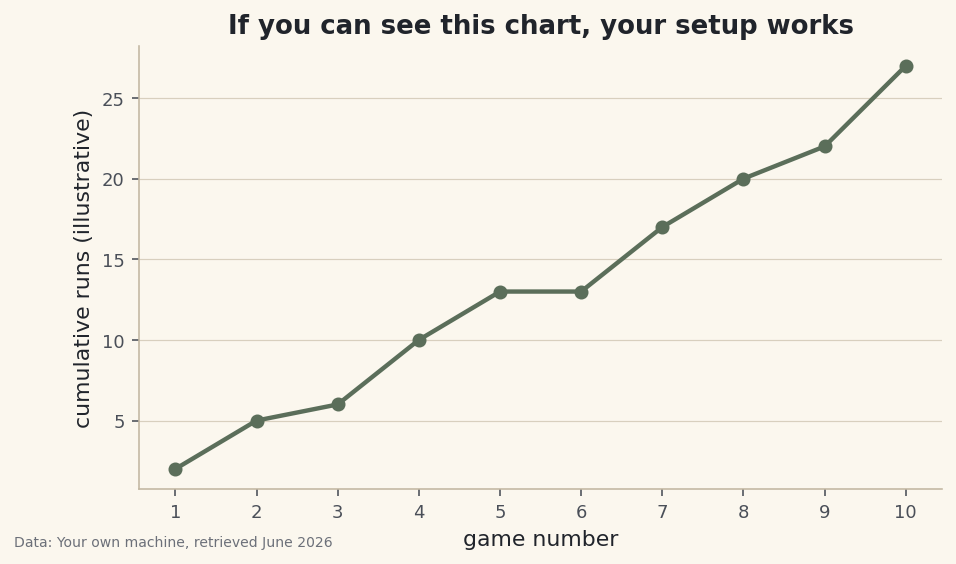
Version numbers tell us the libraries import; a saved chart tells us they actually work, all the way through to a PNG on disk. Let's draw a tiny line chart. The numbers below are illustrative — a made-up running total of runs over ten games, not real sports data — because the point here is the plumbing, not the result.
python import matplotlib.pyplot as plt fig, ax = plt.subplots(figsize=(7.2, 4.0)) games = list(range(1, 11)) running_total = [2, 5, 6, 10, 13, 13, 17, 20, 22, 27] # illustrative, not real data ax.plot(games, running_total, marker="o", linewidth=2.2) ax.set_title("If you can see this chart, your setup works") ax.set_xlabel("game number") ax.set_ylabel("cumulative runs (illustrative)") ax.set_xticks(games) fig.savefig("setup_check.png", dpi=144, bbox_inches="tight")Data: none - the ten values plotted here are illustrative numbers typed into the script itself, to prove matplotlib draws. If you open the PNG and see a line that climbs from left to right with a little dip flat across games five and six, congratulations — your environment is complete. That dip is just two equal values in the illustrative data; matplotlib drew exactly what we gave it, which is exactly what we wanted to confirm.
Troubleshooting
'python' is not recognized (or it opens the Microsoft Store)
Your terminal can't find the interpreter, almost always because "Add Python to PATH" wasn't ticked during install. Re-run the installer, choose "Modify," and enable the PATH option, then open a brand-new terminal window (PATH changes don't apply to terminals that were already open). On some systems the command is python3 rather than python; try that too.
ModuleNotFoundError: No module named 'pandas'
The import ran in a Python that doesn't have pandas installed. The usual cause is a virtual environment that isn't active — check for (.venv) in your prompt and re-activate if it's missing. If you're sure the right environment is active, just run pip install pandas again; pip will confirm it's there or install it.
pip is not recognized or installs into the wrong place
Sidestep the ambiguity by invoking pip through the interpreter you know is correct: python -m pip install pandas matplotlib numpy. The python -m prefix guarantees the install goes to the same Python you run your scripts with, which is the single most common fix for "I installed it but it can't find it."
The script runs but no window appears
That's not an error. We call fig.savefig(...), which writes a file rather than popping open a window — open setup_check.png from your folder to see it. Saving to a file is how every chart on this site is produced, so a missing pop-up window is completely normal.
Challenge yourself
Change the running_total numbers to a sequence of your own and add a second team's line on the same axes with another ax.plot(...) call, then add ax.legend(["Team A", "Team B"]) so the two lines are labeled. When you can make two labeled lines appear in one saved PNG, you've got everything you need for Pandas for Sports Data: 12 operations, where we put real 2023 MLB standings to work.
Download the script
The full script, ready to run - the finished script that generated every figure on this page.
Download the finished script (01_set_up_python_for_sports_analytics.py)This script imports a small shared helper (and reads any bundled sample data) that live next to it in /downloads/ — grab these into the same folder so it runs as-is: sdt_common.py. Or skip the collecting: the Python Foundations for Sports Data bundle has this whole course’s scripts and data in one ZIP.